You know how it feels when your to-do list keeps growing and you’re jumping between apps, trying to get work done but ending up more tired and frustrated than productive? I’ve been there too spending too much time organizing instead of actually finishing things. It’s like the tools meant to help just make the whole process more complicated.
You want a better way, something that saves time and keeps things simple. That’s why AI productivity tools have been a game changer for me. These smart helpers use artificial intelligence to take care of the busywork, like writing drafts, setting up meetings, or summarizing long emails, so you can focus on what really matters.
In this blog, I’ll share the top AI tools that helped me work smarter, not harder. I’ll tell you about my favorites, explain how they fit into different parts of your workday, and give some no-code integration tips to boost your workflow even more. Let’s explore how AI can make your workday easier and more productive.
📝 Key Notes on our Research Process (for Transparency)
- Covered tools from free to premium price ranges
- Surveyed users on their top AI productivity needs
- Spent over 50+ hours testing each tool’s features
- Reviewed onboarding,user interface and support quality
- Tested each tool with other apps in a workflow
Best AI Productivity Tools : Top 5 Picks
- ChatGPT :Advanced AI Chatbot for Many Productivity Tasks
- Github copilot : AI-powered Coding Assistant for Developers
- Notion AI : Powerful workspace for content automation
- Reclaim : AI scheduling for busy professionals
- Grammarly : AI writing assistant for clear communication
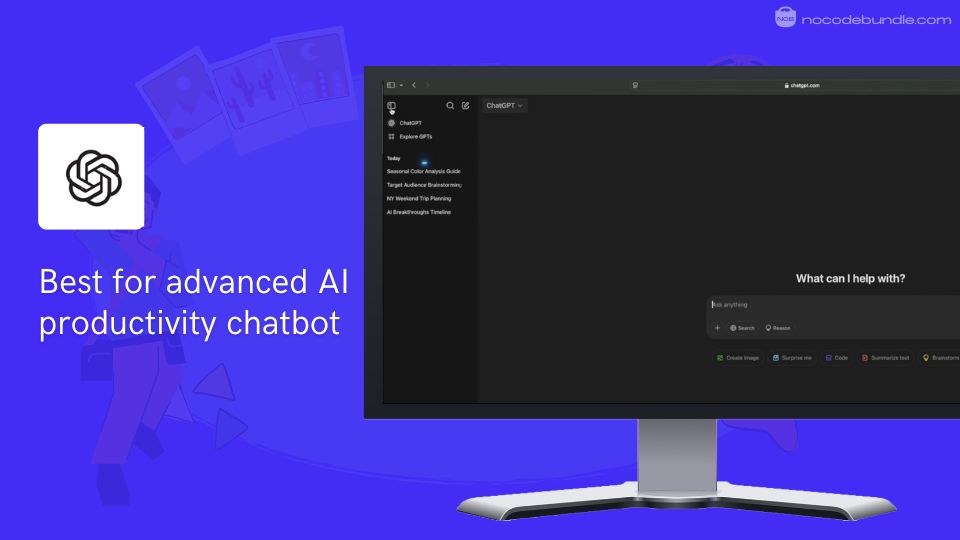
1. ChatGPT: Advanced AI Chatbot for Many Productivity Tasks

ChatGPT is an AI chat tool created by OpenAI that can help with a variety of tasks by understanding and producing human-like text. When I tried it, I found it useful for writing emails, researching topics, brainstorming ideas, coding, learning languages, and managing tasks.
Its quick and clear answers saved me a lot of time for both work and personal projects. You can talk naturally with it to solve problems, learn new things, or plan your day without wasting energy.
ChatGPT offers many powerful features beyond simple chat. For example, it can now remember your preferences during conversations, upload and analyze files like PDFs or spreadsheets, and even understand images.
I tested the file upload feature by sharing a PDF report, and the way it pulled out key points was quick and accurate. There is also a voice mode for hands-free chatting and a live web browsing feature for up-to-date information.
These extend how and where you can use ChatGPT, making it useful in different work and learning situations.
✅ Pros
❌Cons
- Creates clear, natural text
- Helps write and fix code
- Supports language practice
- Assists with task planning
- Fast responses
- Sometimes gives wrong answers
- Can lose track in long chats
- Knowledge cuts off after 2021
✅ Pros
- Creates clear, natural text
- Helps write and fix code
- Supports language practice
- Assists with task planning
- Fast responses
❌Cons
- Sometimes gives wrong answers
- Can lose track in long chats
- Knowledge cuts off after 2021
How Much Does ChatGPT Cost?
ChatGPT has different plans: Free tier with limited use, ChatGPT Go at ₹399/month in India for basic paid access, ChatGPT Plus at $20/month for quicker replies and early updates, and ChatGPT Pro for more features and faster service.
Pro is mainly for heavy users and companies. Costs and features vary by country. The Go plan is a recent, affordable option with useful improvements over Free.
Best Subscription Plan Recommended for ChatGPT
After trying it all, I suggest Plus for most people. It offers faster, more reliable use of newer AI versions without the high price of Pro, which suits professionals or frequent users.
Stand Out Feature of ChatGPT :
One feature I tried is Record Mode for Pro, Enterprise. It lets you record meetings or voice notes, transcribes them as you go, and then creates summaries, action items, and plans. This saved me hours of writing notes and made follow-ups easier.
Should You Use ChatGPT ?
If you need a fast, helpful AI for writing, learning, or coding, ChatGPT works well. From my experience, it handles many tasks easily but sometimes misses details or gives outdated info. It’s best used alongside your own knowledge and fact-checking, not as the only source.
ChatGPT is recommended for 👍
Not recommended for 👎
- Writers and content creators
- Developers and programmers
- Students and language learners
- Professionals handling many tasks
- Users needing fully current or exact facts
- Those wanting human coaching or emotional support
- People needing live tutoring or real-time help
ChatGPT is recommended for 👍
- Writers and content creators
- Developers and programmers
- Students and language learners
- Professionals handling many tasks
not recommended for 👎
- Users needing fully current or exact facts
- Those wanting human coaching or emotional support
- People needing live tutoring or real-time help
2. GitHub Copilot: AI-powered Coding Assistant for Developers

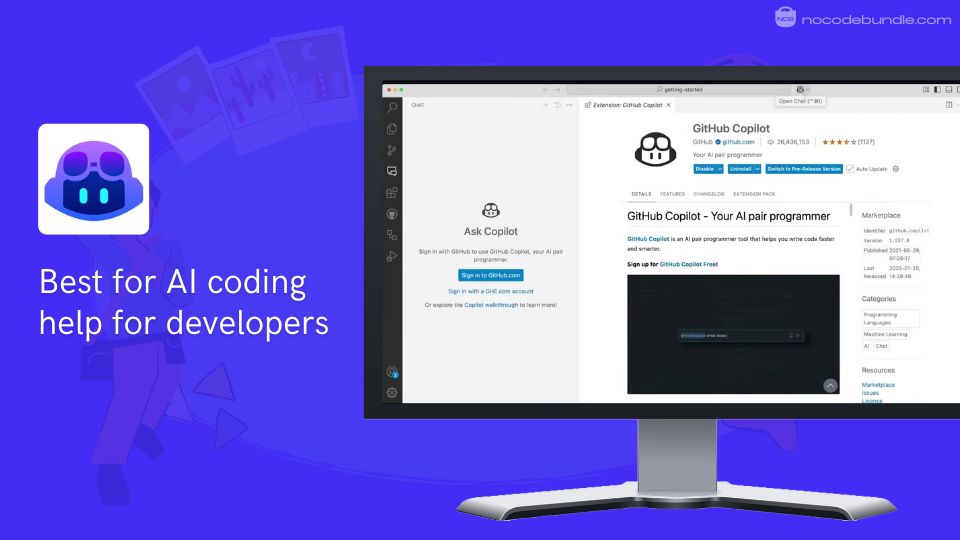
GitHub Copilot is an AI-driven tool made to help developers write code more quickly and easily. It suggests code snippets, finishes lines, and can even write whole functions based on the project you’re working on.
Made by GitHub and OpenAI, Copilot works smoothly inside popular editors like Visual Studio Code and JetBrains IDEs.
During my trial, I found it really helpful for cutting down repetitive coding work and getting new code done faster, so I could spend more time solving problems than typing. I noticed my coding speed improved by about 30%, especially for common tasks.
✅ Pros
❌Cons
- Offers accurate code suggestions
- Works with many programming languages
- Fits well with popular IDEs
- Speeds up regular coding tasks
- Includes code review and fixing tools
- May suggest incorrect or incomplete code
- Needs careful review to avoid errors
- Chat functions limited to some IDEs
✅ Pros
- Offers accurate code suggestions
- Works with many programming languages
- Fits well with popular IDEs
- Speeds up regular coding tasks
- Includes code review and fixing tools
❌Cons
- May suggest incorrect or incomplete code
- Needs careful review to avoid errors
- Chat functions limited to some IDEs
How Much Does GitHub Copilot Cost?
GitHub Copilot comes with GitHub’s Free, Team, and Enterprise plans. The Free plan includes Copilot with some limits, good for individuals. The Team plan costs $4 per user per month and adds collaboration tools plus Codespaces cloud environments.
Enterprise plans start at $21 per user per month and offer stronger security and compliance features. Copilot is part of these plans and helps users with AI code suggestions while giving access to private repositories and other tools
Best Subscription Plan Recommended for GitHub Copilot
The Team plan is a good choice for most developers. It includes full access to Copilot and Codespaces along with team collaboration features. Enterprise is better for bigger organizations needing extra security and control.
Stand Out Feature of GitHub Copilot:
In my experience, Agent Mode was very useful for handling coding tasks across multiple files. I gave it a simple bug fix, and it produced a full pull request with tests included. This feature helped reduce the manual coding steps a lot.
Should You Use GitHub Copilot ?
GitHub Copilot is useful for developers wanting to code faster and spend less time on routine tasks. It’s important to review the suggestions to catch any mistakes. From what I saw, it works best as support alongside a developer’s own skills.
GitHub Copilot is recommended for 👍
Not recommended for 👎
- Developers wanting to save time
- Open source contributors and learners
- Teams working together on code
- People who don’t write code
- Users needing fully accurate code
- Those expecting AI to do all coding
GitHub Copilot is recommended for 👍
- Developers wanting to save time
- Open source contributors and learners
- Teams working together on code
not recommended for 👎
- People who don’t write code
- Users needing fully accurate code
- Those expecting AI to do all coding
3. Notion AI: Powerful workspace for content automation

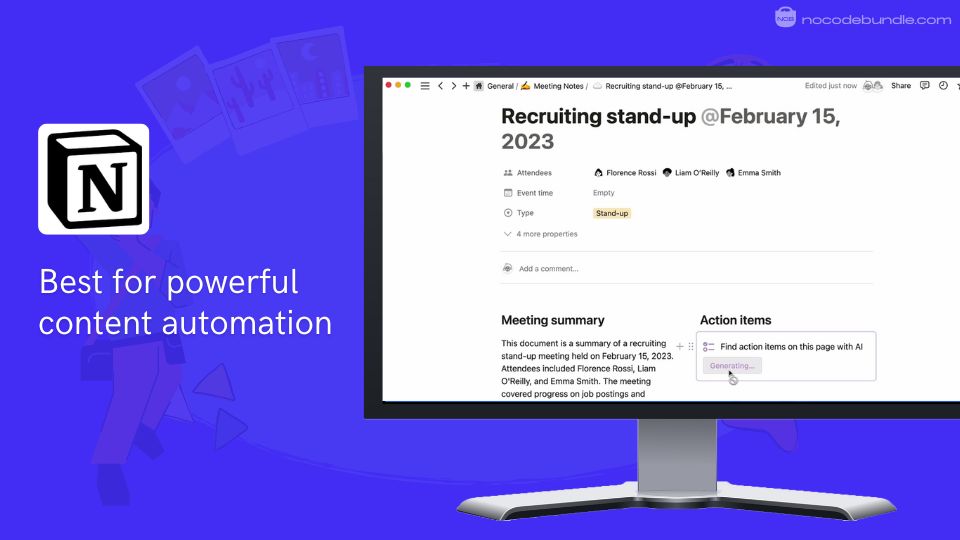
Notion AI is a smart tool built into Notion’s workspace for writing, organizing, and managing information. It automates notes, summarizes documents, answers questions, and links with other apps all in one place.
While I was using Notion AI, I found it straightforward to generate meeting notes and quickly search through pages. Setting up workflows and working with others in real time helped keep things organized.
The latest AI features let me switch between different chat models and handle repetitive writing tasks, saving me time.
✅ Pros
❌Cons
- Automates meeting notes easily
- Strong search across docs and apps
- Creates content and summaries quickly
- Translates documents into many languages
- Connects smoothly with project tools
- Full AI features need paid plan
- Can feel complicated for new users
- Limited options for advanced project management
✅ Pros
- Automates meeting notes easily
- Strong search across docs and apps
- Creates content and summaries quickly
- Translates documents into many languages
- Connects smoothly with project tools
❌Cons
- Full AI features need paid plan
- Can feel complicated for new users
- Limited options for advanced project management
How Much Does Notion AI Cost?
Notion AI is included in Notion’s Plus ($10/user/month), Business ($20/user/month), and Enterprise plans. Free plan users get limited trial AI use. Higher plans offer full AI features, including meeting notes, workflow automation, and multiple chat models. Pricing is per user and scales for teams.
Best Subscription Plan Recommended for Notion AI
From what I found, the Business plan is best for teams and professionals who want complete AI access, customizable workflows, and unlimited content. Plus suits individuals or small groups with moderate needs, while the Free plan is for casual AI exploration.
Stand Out Feature of Notion AI:
One useful feature I tested was the ability to switch between GPT-4.1, Claude 4, and other AI models in Notion AI. Using Research mode, I generated detailed, organized reports by pulling from many documents and web sources quickly.
Should You Use Notion AI ?
Notion AI is made for users managing lots of notes, documents, and light workflows. It helps keep information neat and cuts down on manual writing. Check your needs first: advanced AI and workflow tools are only on paid plans, and some features need time to learn.
Notion AI is recommended for 👍
Not recommended for 👎
- Teams handling many documents
- Freelancers and researchers
- Project planners needing fast notes
- Users wanting full AI free
- Those who like simple setups
- People needing deep project tracking
Notion AI is recommended for 👍
- Teams handling many documents
- Freelancers and researchers
- Project planners needing fast notes
not recommended for 👎
- Users wanting full AI free
- Those who like simple setups
- People needing deep project tracking
4. Reclaim: AI scheduling for busy professionals

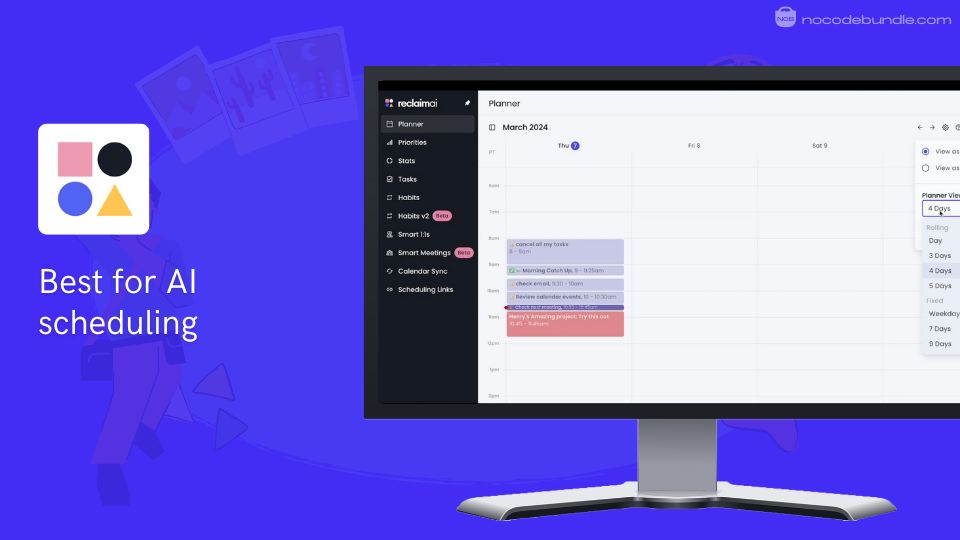
Reclaim is an AI tool that helps manage your calendar by automatically fitting in tasks, meetings, breaks, and habits around your current schedule. It connects with Google Calendar, Outlook, Slack, Jira, and more to keep everything up to date.
When I started using Reclaim, I saw how quickly it found free slots and fit my priorities without double-booking. It adjusted my plans when things changed, helping me stay focused and organized, especially during busy weeks filled with meetings and deadlines.
✅ Pros
❌Cons
- Automatically schedules meetings and tasks
- Syncs across many calendar platforms
- Reserves focus time for priority work
- Includes habit tracking and routines
- Provides easy scheduling links for invites
- Can overbook without tweaks
- Setup requires some learning
- Full features need paid plan
✅ Pros
- Automatically schedules meetings and tasks
- Syncs across many calendar platforms
- Reserves focus time for priority work
- Includes habit tracking and routines
- Provides easy scheduling links for invites
❌Cons
- Can overbook without tweaks
- Setup requires some learning
- Full features need paid plan
How Much Does Reclaim Cost?
Reclaim has a free Lite plan with basic calendar sync and task scheduling. Paid plans start at Starter for $8/user/month, Business at $12/user/month, and Enterprise at $18/user/month with more security and support. Each higher plan offers more habits, scheduling slots, and priority help.
Best Subscription Plan Recommended for Reclaim
From my experience, the Business plan gives the best mix of features and price, fitting teams who need reliable tasks and calendar management. Lite works for basic needs, while Enterprise suits companies needing tighter controls and support.
Stand Out Feature of Reclaim :
A feature I used often is Focus Time. Once I prioritized tasks, Reclaim reserved unbroken time blocks, moving other events to protect those hours. This kept distractions away so I could work deeply on key projects.
Should You Use Reclaim ?
Reclaim is a solid app if your calendar fills quickly and you want help arranging meetings and tasks automatically. Some features take learning, and paid plans open more useful options. Think about how much automation you want before subscribing.
Reclaim is recommended for 👍
Not recommended for 👎
- Professionals with busy schedules
- Teams needing meeting and task sync
- Users managing multiple apps
- Those wanting all features free
- People preferring manual scheduling
- Simple calendar users with easy needs
Reclaim is recommended for 👍
- Professionals with busy schedules
- Teams needing meeting and task sync
- Users managing multiple apps
not recommended for 👎
- Those wanting all features free
- People preferring manual scheduling
- Simple calendar users with easy needs
5. Grammarly: AI writing assistant for clear communication

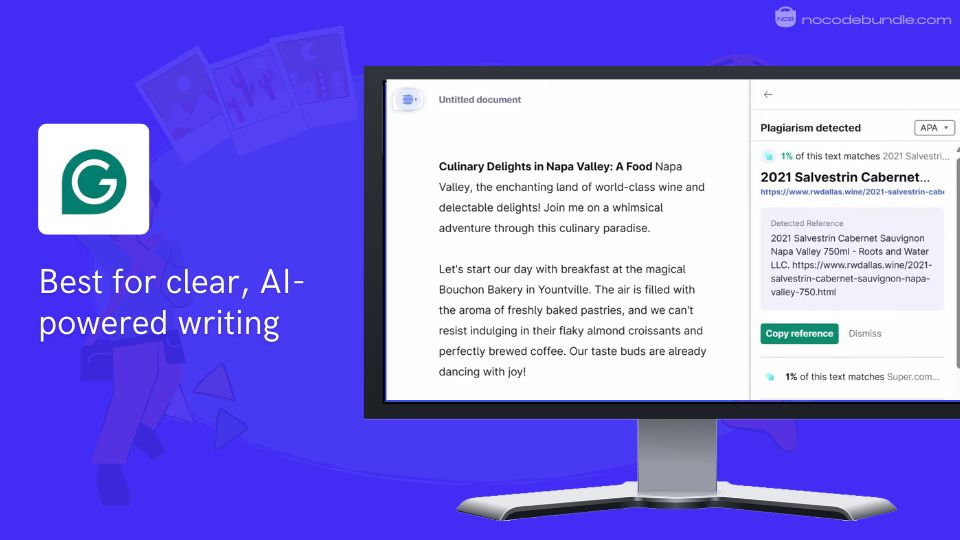
Grammarly helps you improve your writing by checking spelling, grammar, and style across browsers, Microsoft Office, and mobile devices. In my experience with using Grammarly, I found it quickly identified my mistakes and helped me adjust my tone based on different readers.
It also detects plagiarism and AI-written content, which is useful for school and work. Recently, Grammarly added support for Spanish, French, German, Italian, and Portuguese, allowing users to write and correct text in these languages without switching tools.

✅ Pros
❌Cons
- Detects grammar and spelling errors
- Suggests tone for clear writing
- Works on multiple devices and platforms
- Finds plagiarism and AI-written text
- Offers style and clarity suggestions
- Most features need paid plan
- Sometimes flags correct text as errors
- Doesn’t always catch context details
✅ Pros
- Detects grammar and spelling errors
- Suggests tone for clear writing
- Works on multiple devices and platforms
- Finds plagiarism and AI-written text
- Offers style and clarity suggestions
❌Cons
- Most features need paid plan
- Sometimes flags correct text as errors
- Doesn’t always catch context details
How Much Does Grammarly Cost?
Grammarly offers a Free plan with basic checks and 100 AI prompts a month. Pro costs ₹983.25 INR per user per month (billed annually) with full assistance and 2,000 AI prompts monthly. Enterprise provides custom pricing with unlimited AI prompts, extra security, and team management options.
Best Subscription Plan Recommended for Grammarly
For most writing needs, Pro is the best option, providing full grammar, tone, and style help at a reasonable cost. Enterprise suits organizations wanting increased security and control, while Free is suitable for occasional users.
Stand Out Feature of Grammarly :
I found the AI assistant helpful for generating content from prompts. Also, new multilingual support allows writing and corrections in five languages beyond English without switching platforms, which is very practical.
Should You Use Grammarly ?
If you want clearer, more polished writing in emails, documents, or social media, Grammarly is a solid choice. The best features require a paid subscription, so assess your writing volume before committing. It offers dependable help to improve confidence in writing.
Grammarly is recommended for 👍
Not recommended for 👎
- Students and professionals writing often
- Teams needing consistent communication
- Writers wanting grammar and style help
- Casual or rare writers
- Users expecting full AI content creation
- Those seeking unlimited free use
Grammarly is recommended for 👍
- Students and professionals writing often
- Teams needing consistent communication
- Writers wanting grammar and style help
not recommended for 👎
- Casual or rare writers
- Users expecting full AI content creation
- Those seeking unlimited free use
Which is the Best AI Productivity Tool ? Our Top Pick 👑
After testing many AI productivity tools, I found ChatGPT to be the most well-rounded assistant. While Grammarly focuses mainly on writing corrections, GitHub Copilot is limited to coding, Notion AI stays embedded in its own workspace, and Reclaim only manages scheduling, ChatGPT handles a wider variety of tasks like writing, coding, brainstorming, researching, and planning all in a single conversational interface.
It can sometimes give answers that need checking, and isn’t perfect with up-to-date facts, but I prefer one adaptable tool that reduces switching between apps. It’s like having a helper who can jump in anywhere you need support.
Your Complete ChatGPT-Powered Workflow
As a content creator, business professional, or entrepreneur, here’s our recommended bundle of AI productivity tools that work perfectly with ChatGPT:
You would typically use these tools alongside ChatGPT in a content-to-customer workflow like this to create professional content and manage your business:
01 ChatGPT for research, ideation, and first drafts
02 Notion to organize projects and store templates
03 Grammarly to polish and perfect your writing
04 Canva for creating professional visuals and graphics
05 Google Calendar + Calendly for meeting and deadline management
06 Buffer or Hootsuite for social media scheduling and distribution
This stack works because ChatGPT handles the heavy thinking while specialized tools manage execution. I’ve used this combination daily for months, and it cuts content creation time dramatically while maintaining quality. The key is letting each tool do what it does best rather than forcing ChatGPT to handle everything.
Ashna Antony
Ashna Antony is a Hubspot Certified Content Marketer interested in the AI and SaaS landscape. A former Software Developer turned writer, she breaks down how tech actually works and why it matters. She writes about Generative AI, AI Tools, Website Builders, and SaaS. When she’s AFK, she’s probably adding songs to a Spotify playlist or halfway through a podcast episode.