The best AI video editor is not one tool, it is the one that fits your lane: a full timeline for pros, a fast mobile app for daily social, or a script-to-video engine for faceless channels. After testing the field and reading through what creators report, we lined up nine tools by the job they do best, and by the cost that hits you later. Because here is the part the vendor lists skip.
So this guide does two things differently. It ranks tools by use case instead of pretending there is one winner, and it scores cost at volume and export reliability, the two things that decide whether a tool saves you money or just moves the bill. This is for creators, editors, and small teams picking a tool to commit to. One honest caveat up front: I test these tools and weigh what users report, but I am not going to pretend a colorist’s job is mine, so the pro-grade calls lean on research, and the ease-of-use calls lean on hands-on.
What You’ll Learn
4 key points covered
- 1Which AI video editor fits your lane: professional, daily social, podcast, or faceless automation.
- 2Where the hidden cost lives, and why “one all-in-one subscription” rarely saves money.
- 3The honest cons of each tool, including credit burn, export limits, and cancellation traps.
- 4What AI editing can and cannot do today, and where a human still has to finish the job.
Best AI video editors at a glance
Here is the full line-up, ordered so you can jump to the tool that matches your work. we reviewed these on our own testing and the sentiment we read.
| Tool | Best for | Standout | Starting price (2026) |
|---|---|---|---|
| 1. Descript | Podcasts and talking-head | Edit video by editing the transcript | Free; Creator $24/mo (annual) |
| 2. Adobe Premiere Pro | Professional editing | Deep timeline plus Firefly AI | $22.99/mo (single app, annual) |
| 3. DaVinci Resolve | Color grading, best free pick | Pro color and AI, no watermark | Free; Studio $295 one-time |
| 4. CapCut | Fast mobile and social | Raw clip to captioned vertical, fast | Free; Pro about $9.99/mo |
| 5. OpusClip | Long video to short clips | Virality score and auto-reframe | Free; Starter $15/mo |
| 6. Submagic | Animated captions | Native-looking word-by-word captions | Free; Starter about $16 to $20/mo |
| 7. Pictory | Faceless, script to video | Blog or script to captioned video | Starter about $25/mo |
| 8. Synthesia | Faceless avatar presenters | 230+ avatars, 120+ languages | Starter $29/mo ($18 annual) |
| 9. InVideo AI | Prompt and template automation | Describe it, it assembles the video | Plus about $20 to $28/mo |
Best free pick: DaVinci Resolve for real editing and color. Best for daily social: CapCut to edit, OpusClip to clip. Best for talking-head content: Descript. Best for faceless volume: Pictory, Synthesia, or InVideo AI, depending on your style.
How we tested and scored
We scored every tool against six weighted criteria, and we deliberately weighted the two things most lists ignore: what it really costs at volume, and whether the export step holds up. AI features that impress in a demo mean nothing if the export fails on deadline or the credits run out mid-month. All prices below were checked against each vendor’s own pricing page in July 2026; AI pricing shifts often, so re-verify before you buy.
The pattern we kept seeing across was, for any Ai video editing tools, a single subscription does not always mean less money, because heavy generation burns the credits and you hit the ceiling, and you end up paying about the same as your stack of separate tools. This is included into the pricing weight.
1. Descript: Best for podcasts and talking-head editing
Descript is the tool I would hand to anyone whose content is mostly talking. You edit the transcript, the video follows, and trimming a long interview stops feeling like scrubbing a timeline. The catch is the credit meter.
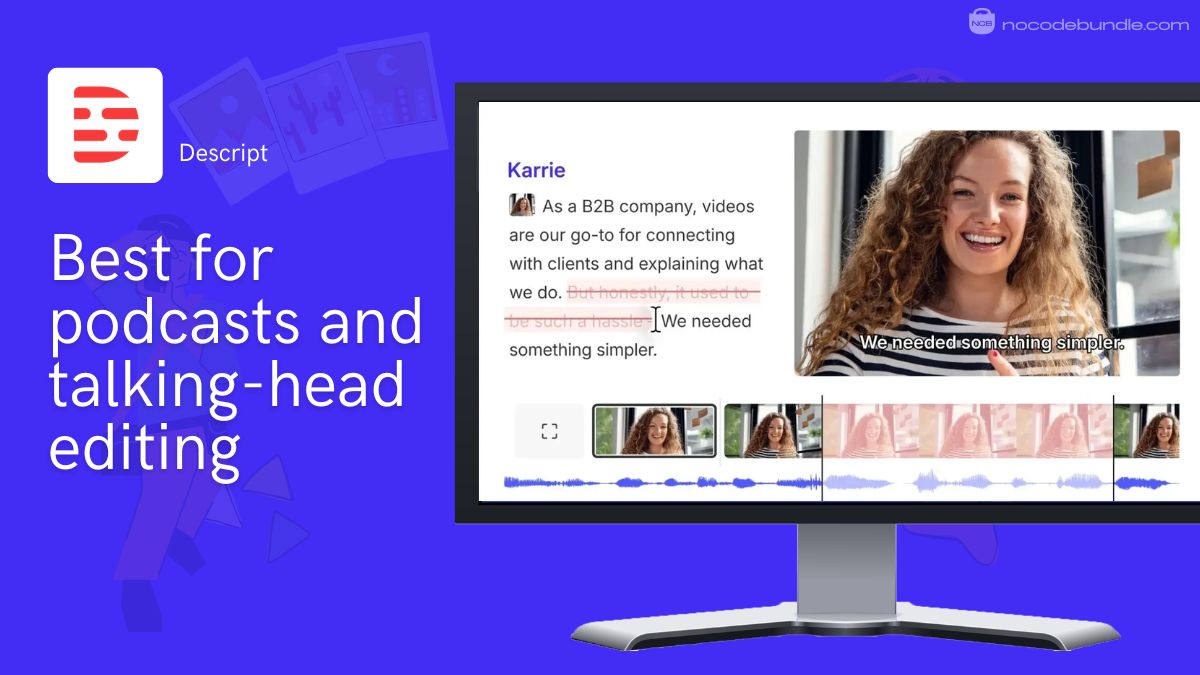
Descript’s core trick is text-based editing: drop in a recording, it transcribes, and deleting a word in the transcript deletes it from the video. On top of that sit one-click filler removal, Studio Sound audio cleanup, Overdub voice cloning for quick corrections, auto-captions, and a newer agent co-editor called Underlord that makes edits from a prompt.
Pricing: the Free plan gives you about 60 media minutes a month with a watermark and 720p export. Paid, you are at Hobbyist $16/mo, Creator $24/mo (both annual, Creator is $35 month to month) with 30 media hours plus 800 AI credits and 4K, and Business $50/mo annual. In late 2025 Descript moved to metered media minutes plus AI credits, which resulted in many pricing complaints.
What users report: the transcript workflow gets consistent praise for making edits feel like editing a document. The recurring frustration is the AI-credit meter running down fast, plus instability and heavy export compression on hour-plus videos, which is why many treat Descript as a rough-cut tool rather than a final-export one.
Pros
- Fastest editor for speech-heavy content.
- One-click filler removal and Studio Sound.
- Real collaboration and captions built in.
Cons
- AI credits burn faster than expected.
- Can lag or crash on long files.
- Export compression with little control.
2. Adobe Premiere Pro: Best for professional editing
Premiere is still the professional standard. If you need real timeline control, motion graphics, and finishing, the AI is a bonus on top of a deep editor, not the reason to buy. It is powerful, and it asks for patience.
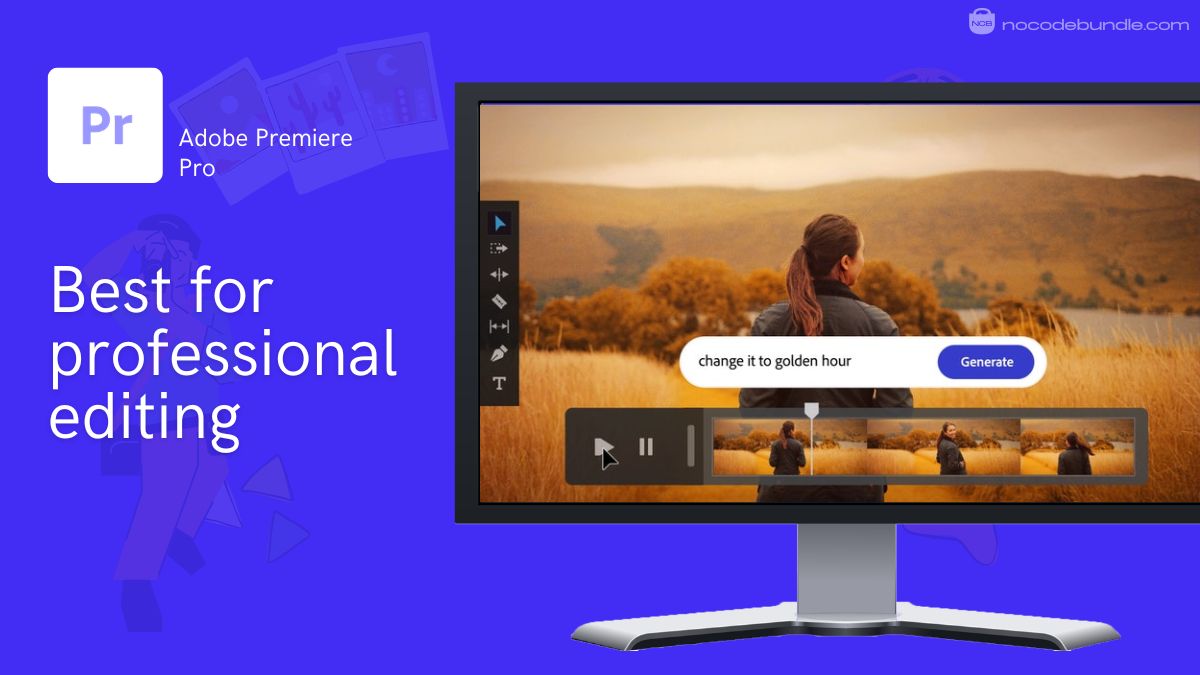
Premiere’s AI runs through Adobe’s Firefly and Sensei layer: speech-to-text and text-based editing, auto-reframe for vertical, color matching, Enhance Speech for audio cleanup, and the newer Object Mask for tracking and isolating subjects. Dynamic Link into After Effects is still the reason serious editors stay in the ecosystem.
Pricing: the single-app plan is $22.99/mo on annual billing (about $34.49 month to month), with a $19.99/mo Students and Teachers tier and a pricier Creative Cloud All Apps bundle if you need Photoshop and After Effects too. Generative features draw on Firefly credits, with extra credit plans from $9.99/mo if you run out.
What users report: daily Premiere editors are the first to say its native AI does not lead the field yet, and that the best audio cleanup can still be a separate step, so it is playing catch-up to the web-based tools. Nobody disputes it is the most capable timeline once you are inside it. The steep learning curve is the common gripe.
Pros
- Deepest control and finishing tools.
- Tight After Effects and audio workflow.
- Reliable on heavy professional projects.
Cons
- AI features trail newer web editors.
- Steep learning curve for beginners.
- Subscription plus real hardware demands.
Tip: if you want pro-grade editing without a subscription and you are on a Mac, Final Cut Pro is a one-time purchase worth weighing against Premiere.
3. DaVinci Resolve: Best free tool for color grading and pro editing
DaVinci Resolve is the best free video editor there is, and its Neural Engine AI is real, not a gimmick. For color and finishing on no budget, nothing else comes close. The price you pay is the learning curve.
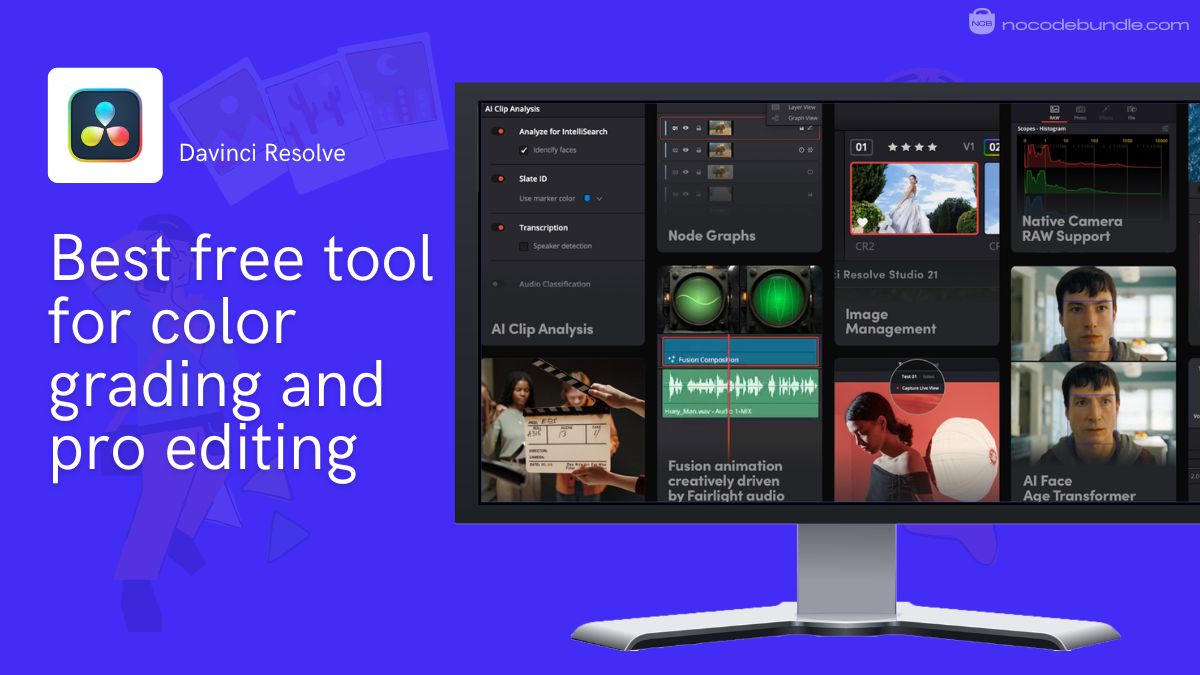
Resolve’s Neural Engine powers Magic Mask (AI subject isolation), Voice Isolation, Smart Reframe, Super Scale upscaling, and Speed Warp slow motion, layered on top of full editing, color grading, Fusion visual effects, and Fairlight audio. The free version has no watermark and no time limit; the one-time Studio license adds HDR mastering, advanced AI noise reduction, and multi-GPU rendering.
Pricing: Free covers most professional workflows including 4K. Studio is a $295 one-time purchase, no subscription, which over a couple of years undercuts almost every rival on this list.
What users report: when creators ask whether they are missing AI editing tools in Resolve, the community’s own answer is to go learn the software through the official training first, because the power is there but the interface rewards study. Colorists and long-form YouTubers rate it highly; it is overkill and horizontal-first for pure vertical short-form.
Pros
- Free, with pro-grade color and AI.
- No watermark, no time limit.
- One-time Studio license, no subscription.
Cons
- Steepest learning curve here.
- Not built for vertical short-form.
- Heavier on your hardware.
4. CapCut: Best for fast mobile and social editing
CapCut is the one I would put in a creator’s hands on day one. It is the fastest path from raw clip to a captioned, published vertical video, and even seasoned pros recommend it to clients. Just read the fine print on ownership.
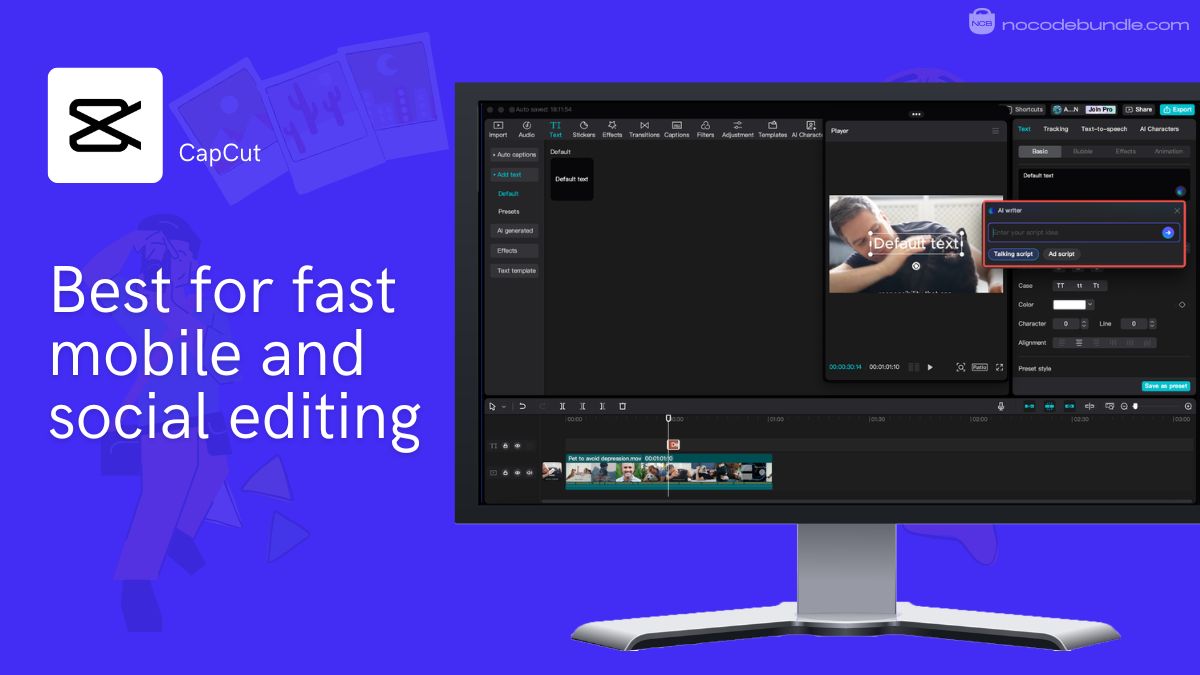
CapCut gives you auto-captions, a deep template library, background removal, auto-reframe, and a huge effects catalog across mobile, desktop, and web. The workflow is built for speed: most edits apply with one tap right where the playhead sits, which is why it dominates short-form.
Pricing: the free tier is generous enough for most creators, with a watermark on some assets and effects. Pro runs around $9.99/mo and unlocks higher-end features and cleaner exports. Worth re-checking, since CapCut’s tiers and regional availability shift.
What users report: the value and simplicity win real praise, My colleague a professional editor who recommends CapCut to non-editor clients because it is so teachable. The recurring caution is lock-in: exports gated behind sign-in or Pro, questions around commercial-use terms, and a product tuned to keep you inside its ecosystem.
Pros
- Unbeatable value and ease of use.
- Templates and captions in seconds.
- Works on mobile, desktop, and web.
Cons
- Export and sign-in friction.
- Commercial-use and ownership questions.
- Timeline-driven for long-form work.
Watch out: before you build a business on CapCut’s free tier, confirm the current commercial-use terms for the assets and effects you rely on. Users repeatedly flag this as the catch behind the “free and easy” pitch.
5. OpusClip: Best for turning long videos into short clips
OpusClip is the clipping benchmark. Upload a long video and get a stack of captioned vertical shorts with virality scores, with almost no manual work. Watch the credit meter and the cancellation terms closely.
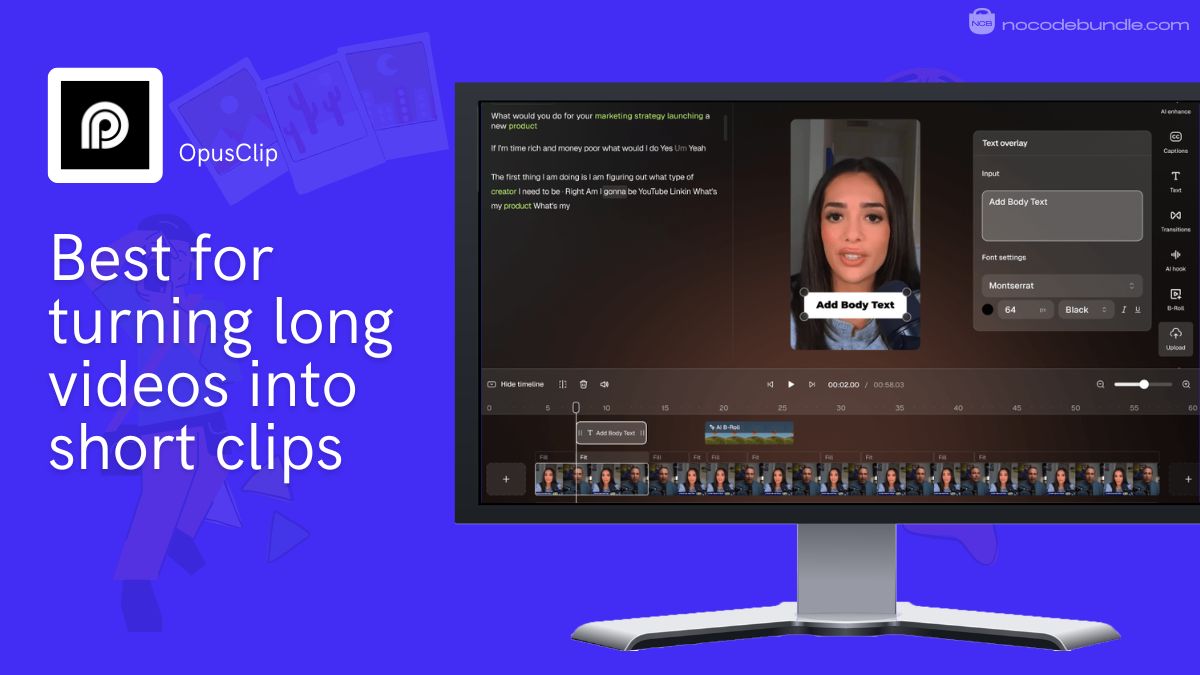
OpusClip runs on ClipAnything, a multimodal model that scans visuals, audio, and facial cues to find the strongest moments, then scores each clip 0 to 99 on likely virality, reframes it vertical, and burns in animated captions. Pro adds B-roll, brand kit, and auto-posting to YouTube, TikTok, and Instagram.
Pricing: Free gives 60 processing minutes a month, watermarked, with clips expiring after 3 days. Starter is $15/mo (150 minutes, no watermark, 720p), Pro is $29/mo (about $14.50 to $19/mo annual, 300 minutes, 1080p, auto-posting), and Business is custom. Credits track source length: one credit is roughly one minute of uploaded video.
What users report: fans love the hands-off flow, upload a long video and it pings you when the shorts are ready. The loud, recurring complaint is billing: credits burn by source length regardless of how many clips you keep, projects and paid-for credits can vanish when a subscription lapses, the refund path is buried, and there is no renewal warning. Several creators prefer Vizard for cleaner clips and built-in scheduling at similar cost.
Pros
- Best clip detection and virality scoring.
- Auto-reframe, captions, and auto-posting.
- Truly hands-off once set up.
Cons
- Credits burn by source length, fast.
- Projects and credits can expire on cancel.
- Template fatigue on high-volume output.
6. Submagic: Best for animated captions on short-form
Submagic is the caption specialist. If your shorts live or die on bold, word-by-word animated captions, it gives you more control than a general editor without hiring a motion designer.
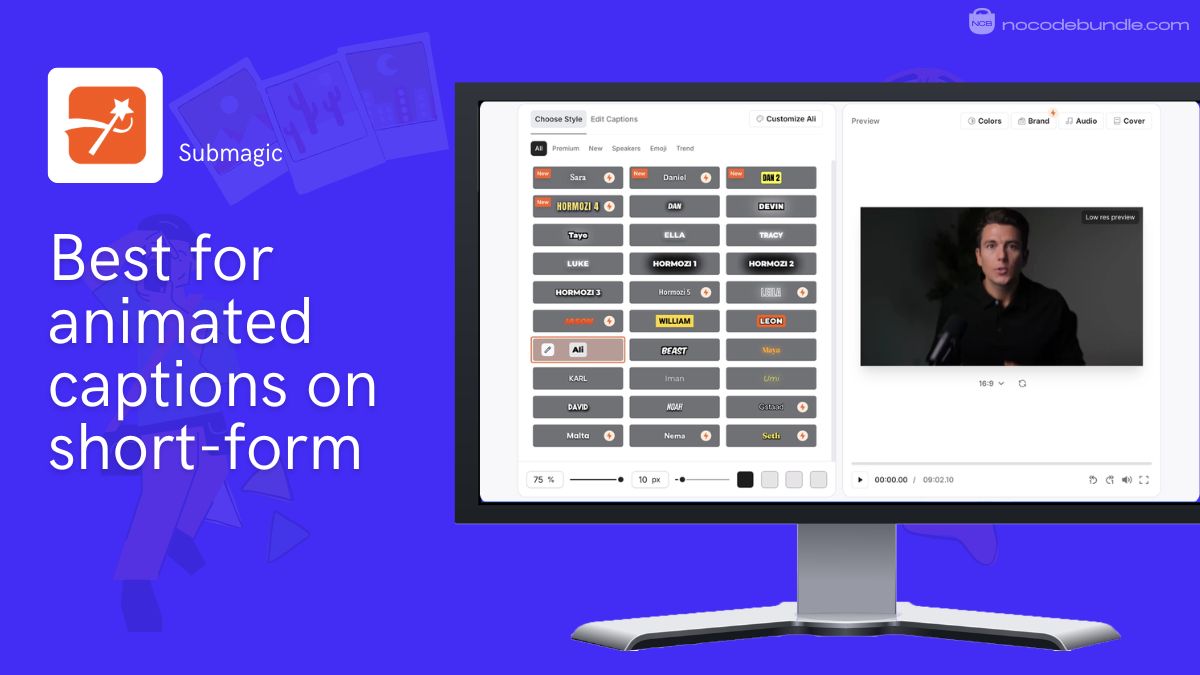
Submagic centers on dynamic captions in 100+ languages with keyword highlighting and viral styles, plus Magic Clips to turn a long recording into several shorts, B-roll, auto-zoom, sound effects, scheduling, and brand templates. It is more than a caption tool but more focused than a full timeline.
Pricing: Free covers about 3 videos a month with a watermark. Paid starts around $16 to $20/mo (Starter, with a video count and length cap), rises to about $40/mo (Pro, higher caps), and about $80/mo for agency use. Advanced AI features like translation and premium stock are metered by credits even on paid tiers, so re-check the current caps.
What users report: Among G2 Reviews the consistent praise is the fastest route to native-looking captions and quick multi-clip output from one source. The recurring gripes are the video-count and length caps that trigger upgrades, and credit-gated extras that limit the advanced AI even after you have paid.
Pros
- Best-in-class animated captions.
- Magic Clips turns long video into shorts.
- Fast, publish-ready styling.
Cons
- Video-count and length caps.
- Advanced AI extras gated by credits.
- Narrower than a full editor.
7. Pictory: Best for turning scripts and blogs into faceless videos
Pictory is the pick when you want to turn writing into video. Paste a blog post or script and it builds a captioned video with stock footage and an AI voice. It is built for volume, not frame-level control.
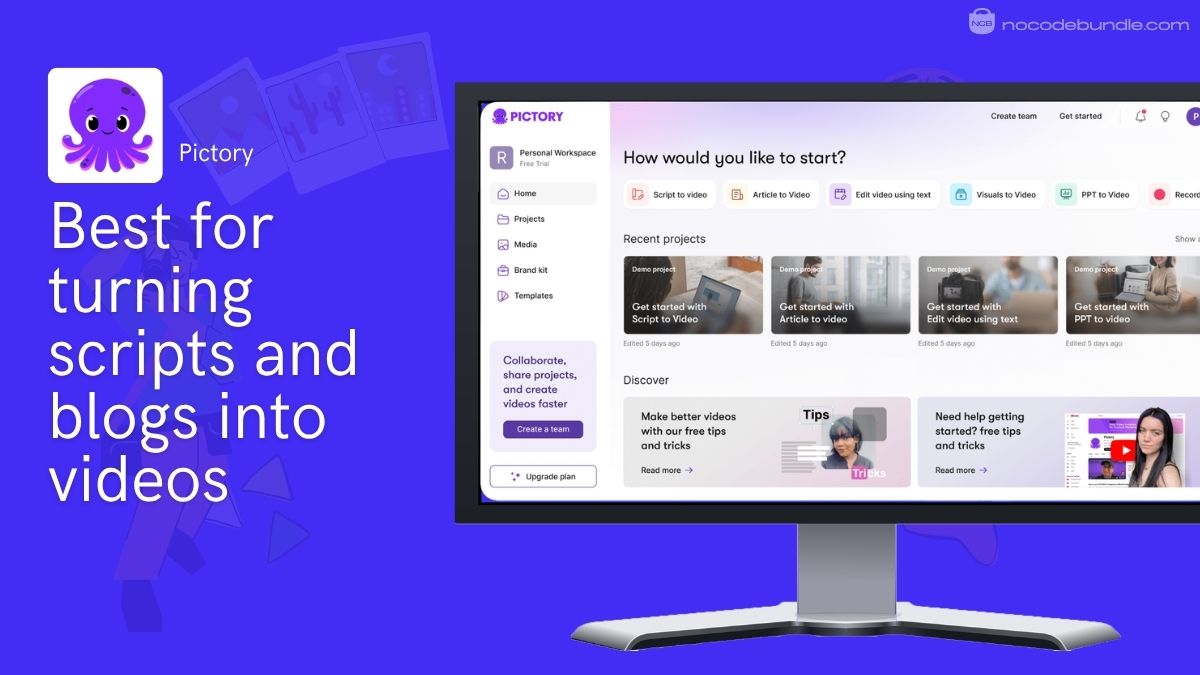
Pictory turns text, URLs, scripts, and slide decks into videos, drawing on a large stock library, AI voices in 20+ languages, auto-captions, and edit-by-text. It is aimed squarely at marketers, educators, and faceless channels that repurpose written content at scale. For the narration itself, many creators pair it with a dedicated voice tool; see our roundup of the best AI voice generation tools.
Pricing: Starter is around $25/mo (200 video minutes, one brand kit), Professional around $35/mo (600 minutes, 1080p), with Teams and Enterprise above that. Output is metered by video minutes, so re-check the current allowances before committing.
What users report: reviewers like how easy blog-to-video and ad-video creation is, and call the pricing straightforward. The recurring gripes are a limited template selection, output that can feel less polished than dedicated generators, and enhanced-voice credits that can run out mid-month with only an annual upgrade to fix it.
Pros
- Fast blog and script to video.
- Large stock and voice library.
- No editing experience required.
Cons
- Template selection feels limited.
- Metered by video minutes.
- Not for manual, frame-level polish.
8. Synthesia: Best for faceless avatar presenter videos
Synthesia is the standard for avatar-presenter videos. Type a script, pick a digital presenter and a language, and get a talking-head video. It is best for training, explainers, and multilingual content, and it is priced for teams.
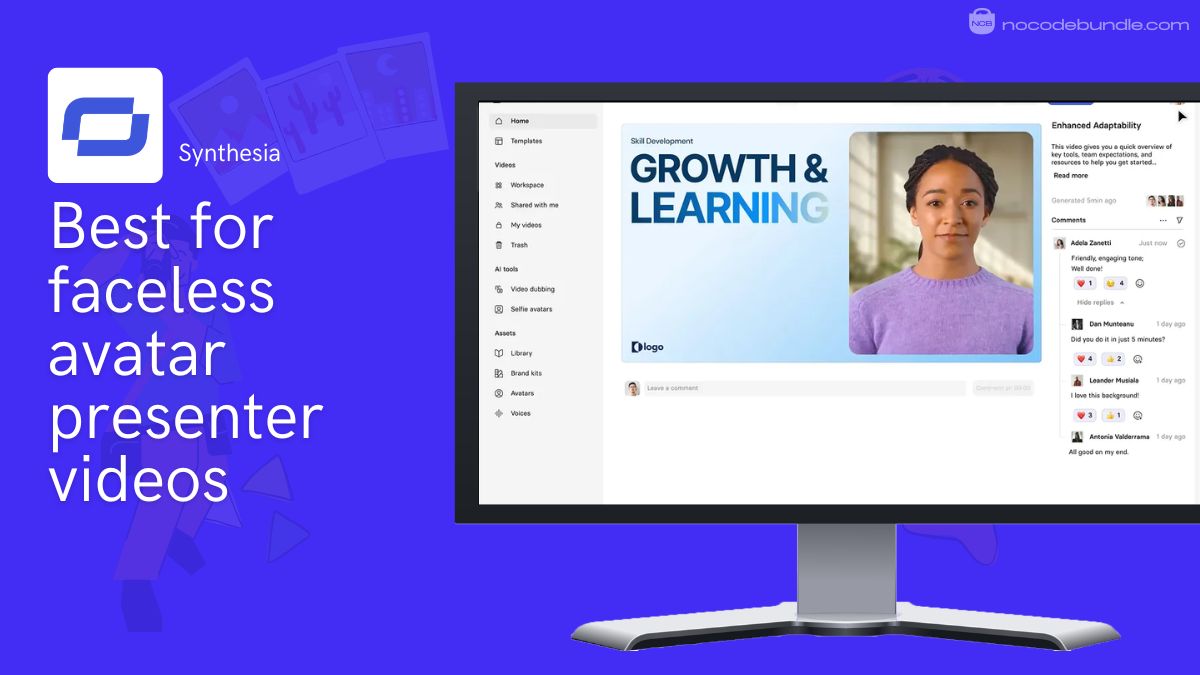
Synthesia offers 230+ avatars and 120+ languages, custom avatars of your own likeness, an AI Playground with access to generative models like Veo and Sora, PowerPoint-to-video, and dubbing. For a global training video from a single English script, it is the most complete option here.
Pricing: Free gives a few watermarked minutes a month. Starter is $29/mo ($18 annual) for 10 minutes a month, Creator is $89/mo ($64 annual) for 30 minutes, and Enterprise is custom. Two things drive the real bill: minutes do not roll over, and each editor needs a full paid seat, so a small team multiplies fast.
What users report: the strong praise is that it eliminates studios, actors, and reshoots for training and multilingual content, with convincing avatars. The recurring frustration is the economics: tight monthly minute caps, minutes that do not pool or carry over, per-seat billing that stacks up for teams, and a steep jump from Creator to Enterprise.
Pros
- Best avatar quality and language coverage.
- PowerPoint-to-video and dubbing.
- Generative playground built in.
Cons
- Per-seat billing gets expensive fast.
- Minutes are capped and do not roll over.
- Big price jump to unlock scale.
Tip: if avatar presenters are your main need but Synthesia’s seat math does not fit, HeyGen is the closest alternative worth pricing against it.
9. InVideo AI: Best for prompt and template-based automation
InVideo AI is the prompt-to-video generalist. Describe the video you want and it assembles a script, stock footage, voiceover, and captions, with generative model access on top. Flexible, as long as you can live with less control over pacing.
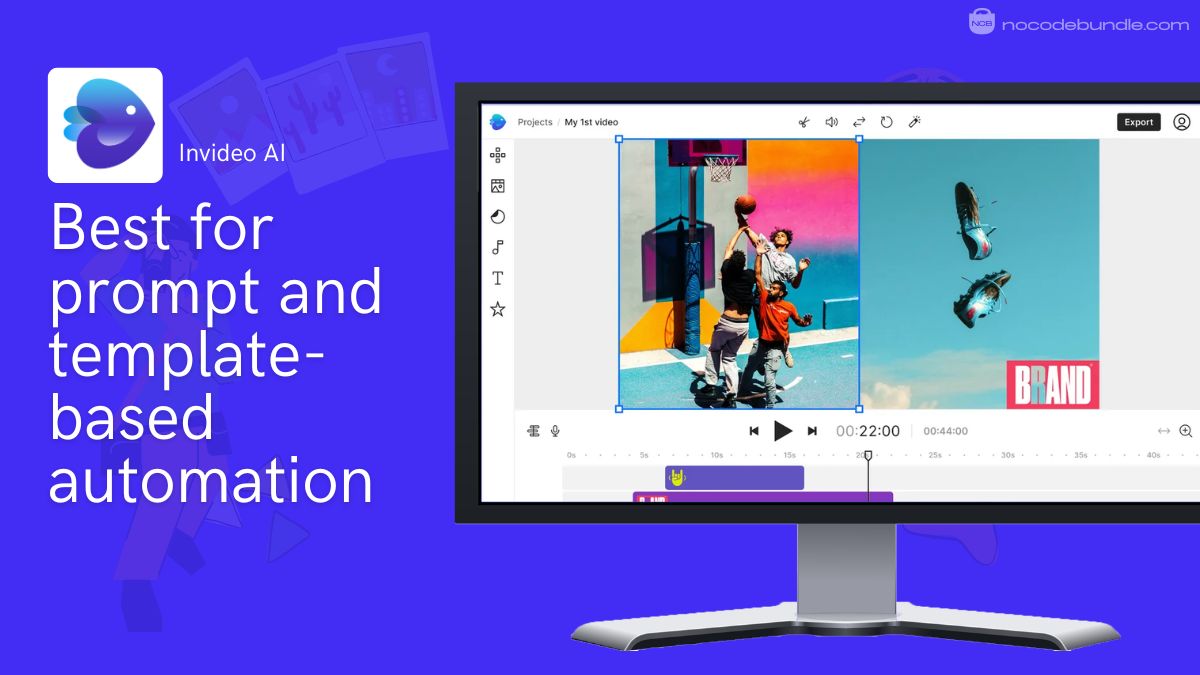
InVideo AI builds a full video from a single prompt, then lets you refine it with plain-text commands. It pairs a large template library with generative model access for net-new clips, AI voices, and auto-captions, which is why marketers reach for it on promotional and social content.
Pricing: a limited free tier, then Plus around $20 to $28/mo and Max around $48 to $60/mo (adding voice cloning), plus a generative tier. Generative features are metered, so the real cost depends on how much you generate. Re-check the current tiers on the vendor site.
What users report: creators like the fast, template-driven assembly and the higher tiers’ export headroom, and they pair it with a generator for original clips. The common gripes are less control over narration pacing and long-form storytelling, and the familiar credit math once you lean on generative features.
Pros
- Flexible prompt and template workflow.
- Generative model access built in.
- Fast from idea to draft.
Cons
- Less control over narration pacing.
- Generative use is metered.
- Better for short promos than long-form.
Our top pick and why
There is no single best AI video editor, and any list that crowns one is selling you something. The right pick is set by the job:
- Professionals: DaVinci Resolve if you want pro-grade editing and color for free, or Premiere Pro if you already live in the Adobe ecosystem. Why not the social tools here: they cap out on real timeline and color control.
- Daily social creators: CapCut to edit and OpusClip to clip long video into shorts. Why not a pro NLE: the speed-to-publish gap is too big when you post every day.
- Podcasters and talking-head channels: Descript, because transcript editing is built for speech. Why not CapCut: it is not designed to edit a conversation by its words.
- Faceless and automated channels: Pictory for script and blog-to-video, Synthesia for avatar presenters, InVideo AI for prompt-driven assembly. Why not one of them for everything: each is strong in its own lane and thin outside it.
How to choose an AI video editor for your workflow
Start with the job, not the feature list. Match the tool to how you produce, then check the meter before you commit.
The pitch you will hear
One AI tool replaces your whole workflow and does everything end to end.
The reality that holds up
AI reliably does the mechanical 70 to 80 percent (captions, reframe, cleanup, finding clips). You finish the creative 20 to 30 percent, and the meter is the real cost.
Decide by scenario. If you record a lot of talking, go transcript-first with Descript. If you post short vertical video daily, CapCut plus a clipper is the fastest stack. If you need cinematic control or color, Resolve or Premiere. If you are building a faceless channel from scripts or avatars, start with Pictory, Synthesia, or InVideo AI, and add a voice tool for narration. For the full end-to-end short-form pipeline, our guide on creating viral short videos with AI walks through niche, script, voice, and editing together.
Recommended · Related guide
How To Create Viral Short Videos Using AI (2026 Guide)
The workflow around these editors: finding a niche, scripting, voiceovers, and repurposing long video into high-performing Shorts.
Read the guide →Watch out: before you consolidate onto one all-in-one subscription to “save money,” price your real monthly volume. Heavy generation burns credits and hits a ceiling, and you often land at about the same spend as several tools. You are buying less hassle, not less cost.
Key Takeaways
5 essential decisions
- Pick by lane: pro editing, daily social, podcasts, or faceless automation. There is no single winner.
- Score cost at volume, not the sticker price. Most of these tools bill by a meter.
- Check cancellation terms: on some clipping tools, credits and projects vanish when you stop paying.
- DaVinci Resolve is the best free pick; CapCut is the best value for daily social.
- Expect AI to do the mechanical work, not the storytelling. You still finish the edit.
Frequently asked questions
What is the best free AI video editor?
Will AI replace video editors?
Can AI edit long-form video, or only short clips?
Does one all-in-one subscription actually save money?
Do AI clipping-tool credits expire if I cancel?
Which AI tool is best for a faceless YouTube channel?